The WELL Installs New T-3 Access
How This New Service Affects Your PPP Access To The WELL
Faster Access to the Internet
As part of the WELL's ongoing expansion, we are
upgrading our internet connection. On Saturday, September 23rd, we will
be switching over to a T-3 line, the largest pipe to the net available.
This switch requires the WELL to change our Domain Name Server (DNS) IP
addresses. As a PPP or Whole Works customer, you wil need to update
these IP addresses in your software. This will not affect your email
address. You must make this change to connect with the WELL after we
install our T-3 line.
Please see the instructions below for your Mac or Windows installation.
During the installation, the WELL will be unavailable Saturday,
September 23rd, from 8:00 AM to 8:00 PM PDT. These times may vary
depending upon the installation situation. Thank you for your patience
as we bring this new service online.
To check system status, call:
U.S. Customers 800-326-8354
Outside the U.S. 415-332-4627
Updating you Macintosh Settings
- From the Apple Menu select Control Panels.
- Open MacTCP.

- Click More.
- In the Domain Name Server Information section (lower right hand
cormer of window), change your settings to match the following:
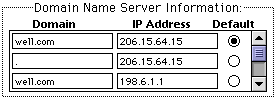
Enter the period (.) in line 2
- Click OK
- Close the MacTCP window.
Your Macintosh is now correctly configured with the WELL's new IP
addresses.
Updating your Windows settings
- Open the program group "The Whole Works" in your Program Manager.
- Click on the "Whole Works" icon.
- Click on the "Connect" button.
- Select menu item Site Setup from the Options menu.
- Click on "IP Addresses"
- In the DNS Address section enter the following numbers:

- Click OK to close the IP Address window and again click
OK to close the Site Setup window.
Your computer is now correctly configured with the WELL's new IP
address.

We took a few photos during the installation. Check 'em out.